> ## Documentation Index
> Fetch the complete documentation index at: https://docs.hologrow.ai/llms.txt
> Use this file to discover all available pages before exploring further.
# Google Ads
> Authorize Google Ads and verify data sync.
Connect Google Ads to Hologrow to sync advertising delivery and performance. Actual coverage depends on account permissions and available workspace tables.
## Before you start
A Google account with access to the target Google Ads account. If using a manager account, confirm access to the intended client account.
## Connection steps
1. Sign in to Hologrow, open **Integrations**, and find **Google Ads**.
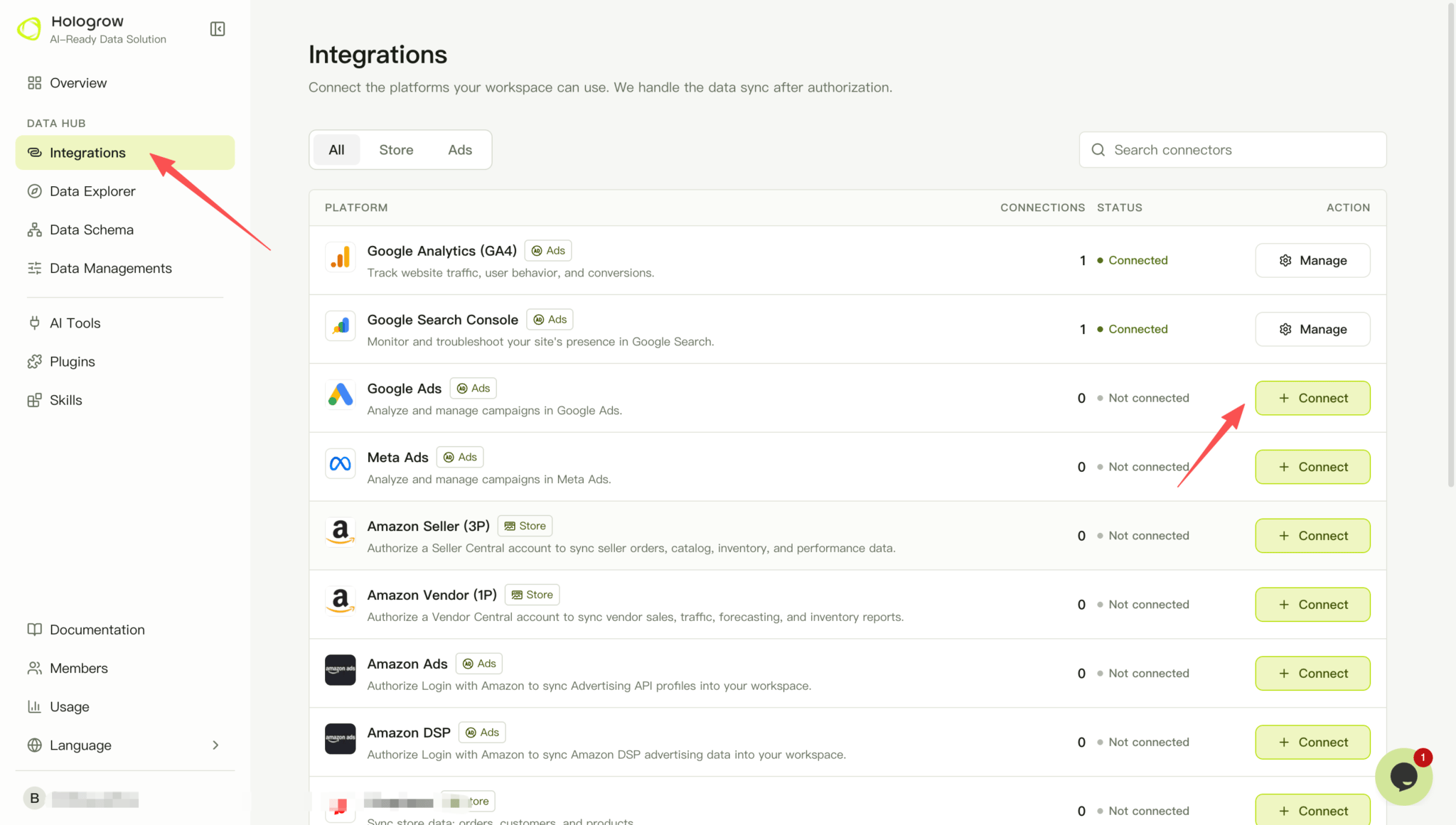 2. Click **Connect**, or open **Manage** to add another connection.
3. Sign in with the Google account that has advertising access. Review the Google Ads permissions on the consent screen, select any consent checkbox shown, and click **Allow**. If the connection flow asks for a Customer ID, enter the intended advertising account’s customer ID.
2. Click **Connect**, or open **Manage** to add another connection.
3. Sign in with the Google account that has advertising access. Review the Google Ads permissions on the consent screen, select any consent checkbox shown, and click **Allow**. If the connection flow asks for a Customer ID, enter the intended advertising account’s customer ID.
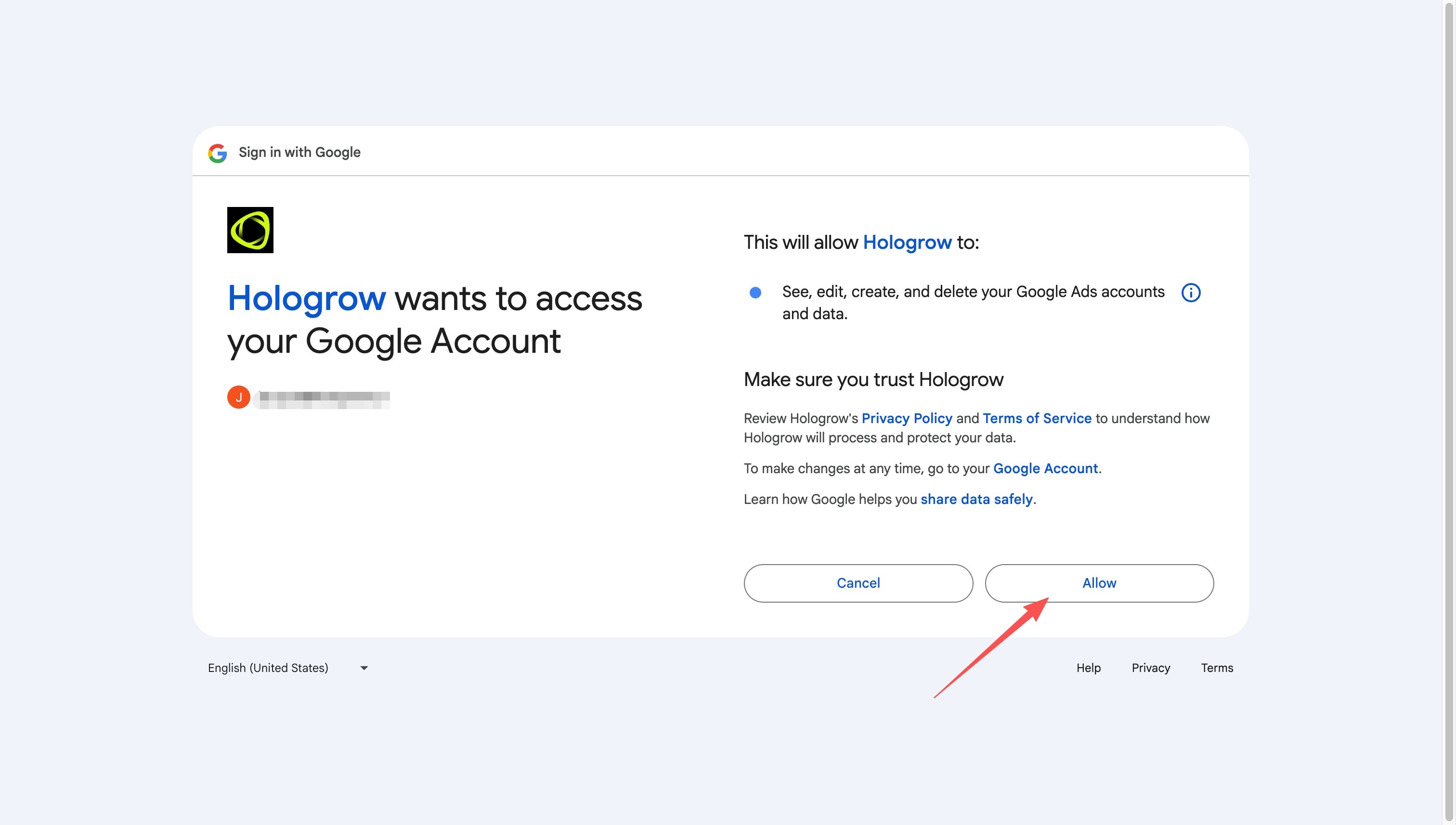 You must grant access to connect Google Ads. If a consent checkbox appears, select it before clicking **Allow**. Signing in without approving access will not complete the connection.
4. Return to Hologrow and open [Data Explorer (connection status)](/hologrow-basics/data-explorer). Find the connected account and confirm its status and account name there. If prompted to start syncing, review the data settings and start the sync.
5. Check progress and the last successful sync in [Data Explorer](/hologrow-basics/data-explorer), and wait for the required tables to become available.
## Troubleshooting
Check the intended customer ID and account access. Access to a manager account alone does not grant access to an unlinked client account.
If authorization expires, reauthorize the affected connection in **Manage**. If the account is connected but data is missing, check whether syncing has started, the requested date range, and whether the source platform has data.
## Related pages
* [Back to Integrations](/hologrow-basics/integrations)
* [Connect AI tools](/hologrow-basics/ai-platforms)
You must grant access to connect Google Ads. If a consent checkbox appears, select it before clicking **Allow**. Signing in without approving access will not complete the connection.
4. Return to Hologrow and open [Data Explorer (connection status)](/hologrow-basics/data-explorer). Find the connected account and confirm its status and account name there. If prompted to start syncing, review the data settings and start the sync.
5. Check progress and the last successful sync in [Data Explorer](/hologrow-basics/data-explorer), and wait for the required tables to become available.
## Troubleshooting
Check the intended customer ID and account access. Access to a manager account alone does not grant access to an unlinked client account.
If authorization expires, reauthorize the affected connection in **Manage**. If the account is connected but data is missing, check whether syncing has started, the requested date range, and whether the source platform has data.
## Related pages
* [Back to Integrations](/hologrow-basics/integrations)
* [Connect AI tools](/hologrow-basics/ai-platforms)