> ## Documentation Index
> Fetch the complete documentation index at: https://docs.hologrow.ai/llms.txt
> Use this file to discover all available pages before exploring further.
# Shoplazza
> Requirements, connection steps, and troubleshooting.
Connect Shoplazza orders, customers, and products to Hologrow using the store domain and a private app’s **Access Token**.
## Before you start
Use a Shoplazza admin account allowed to manage apps. Prepare the store’s `*.myshoplazza.com` or `*.myshoplaza.com` domain, rather than a custom storefront domain or an admin page URL.
## Get an Access Token
1. Sign in to the Shoplazza store admin, open **Apps**, then **Manage Private Apps**.
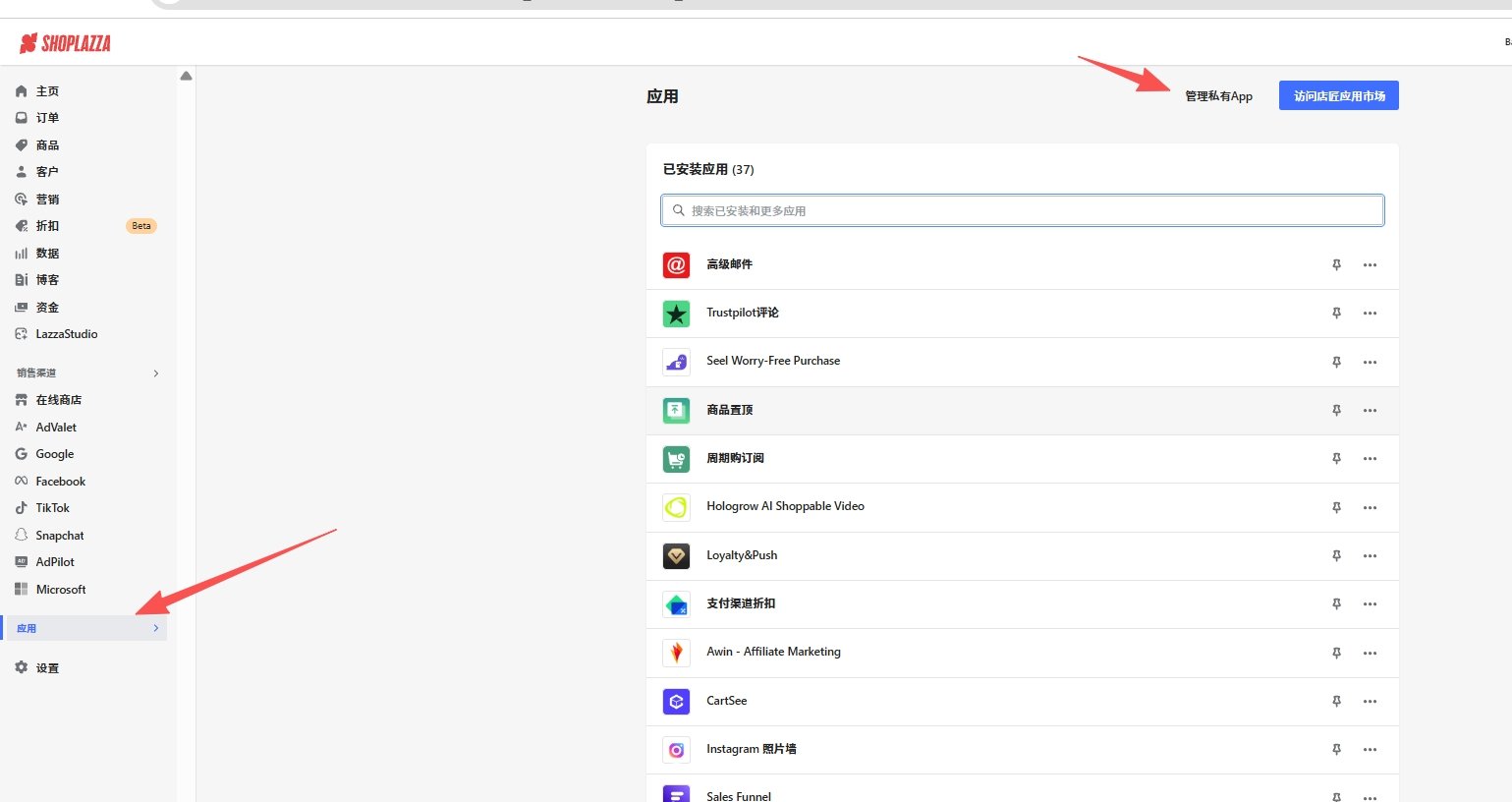 2. Create a private app, complete its required name and contact details, enable the required data read permissions, and save.
3. Open the private app and copy its generated **Access Token**, not the App UID or App Secret.
See the [official Shoplazza private app guide](https://www.shoplazza.dev/docs/app/getting-started/create-private-app) for menu and permission details.
## Connect in Hologrow
1. Open **Integrations**, find **Shoplazza**, and click **Connect**, or use **Manage** to add another connection.
2. Create a private app, complete its required name and contact details, enable the required data read permissions, and save.
3. Open the private app and copy its generated **Access Token**, not the App UID or App Secret.
See the [official Shoplazza private app guide](https://www.shoplazza.dev/docs/app/getting-started/create-private-app) for menu and permission details.
## Connect in Hologrow
1. Open **Integrations**, find **Shoplazza**, and click **Connect**, or use **Manage** to add another connection.
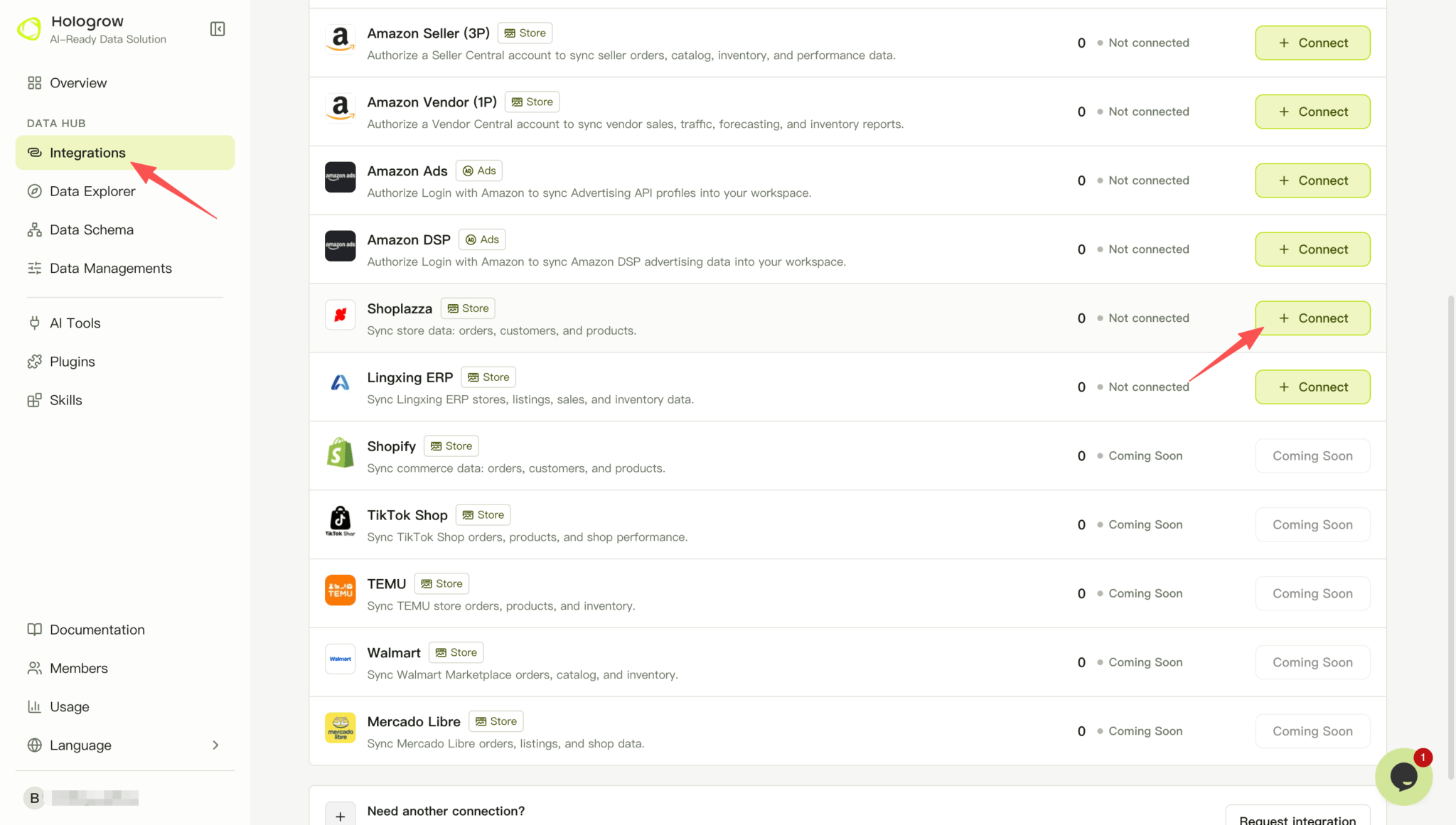 2. Enter the original shop domain, such as `example.myshoplazza.com`.
3. Paste the token into **Access Token** and optionally add a note.
2. Enter the original shop domain, such as `example.myshoplazza.com`.
3. Paste the token into **Access Token** and optionally add a note.
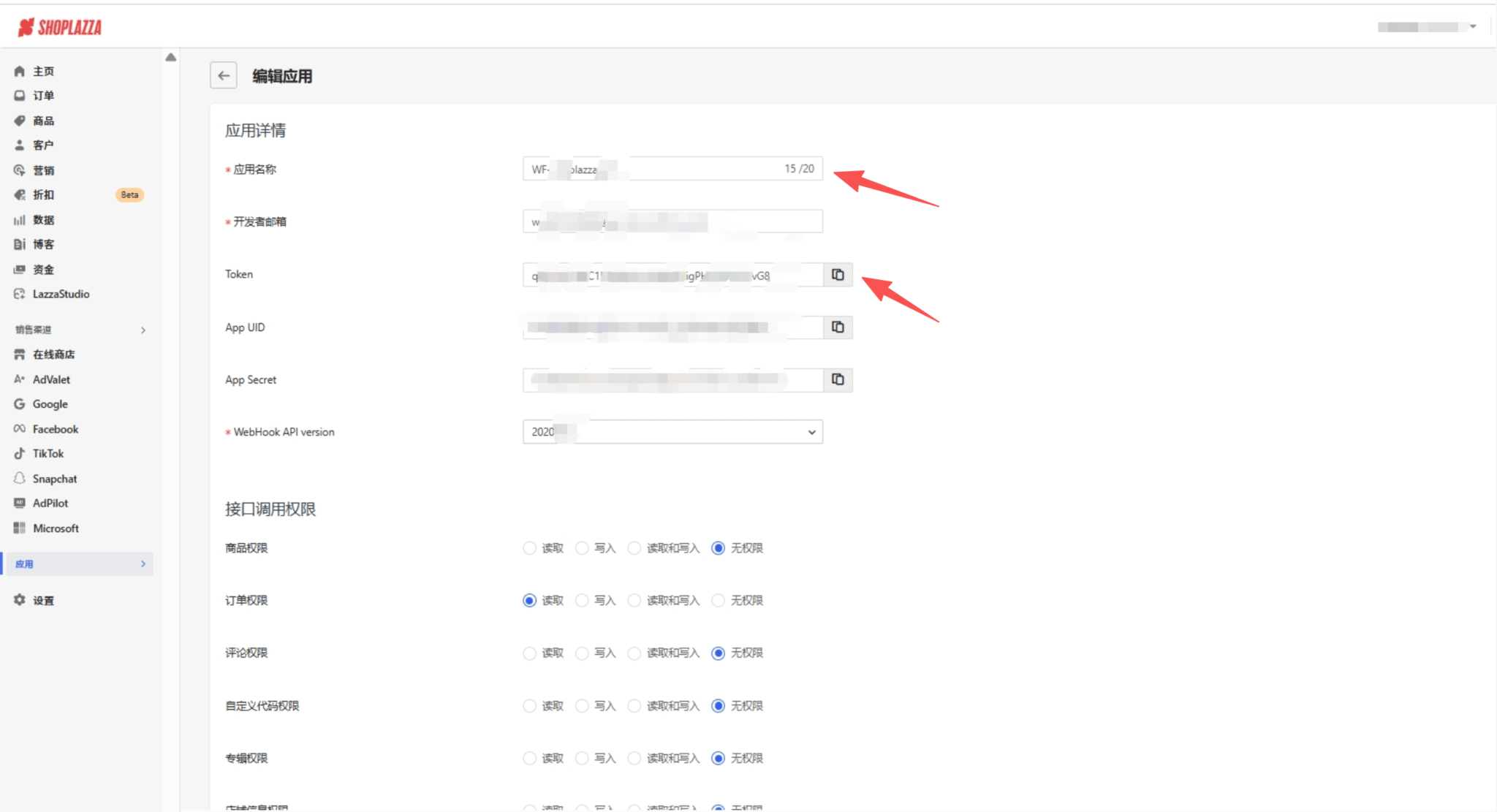 4. Submit with the authorize account button, then open [Data Explorer (connection status)](/hologrow-basics/data-explorer) to confirm the Shoplazza account and its status. If prompted to start syncing, review the data settings and start the sync.
5. Check sync progress and tables in [Data Explorer](/hologrow-basics/data-explorer).
## Troubleshooting
* **Invalid domain**: Enter only the supported shop domain, without `/admin`, query parameters, or a custom domain.
* **Authorization fails or data is missing**: Confirm the token belongs to this store, remains valid, and has the required read permissions.
* **Multiple stores**: Add each store separately with its own domain and token.
## Related pages
* [Back to Integrations](/hologrow-basics/integrations)
* [Connect AI tools](/hologrow-basics/ai-platforms)
4. Submit with the authorize account button, then open [Data Explorer (connection status)](/hologrow-basics/data-explorer) to confirm the Shoplazza account and its status. If prompted to start syncing, review the data settings and start the sync.
5. Check sync progress and tables in [Data Explorer](/hologrow-basics/data-explorer).
## Troubleshooting
* **Invalid domain**: Enter only the supported shop domain, without `/admin`, query parameters, or a custom domain.
* **Authorization fails or data is missing**: Confirm the token belongs to this store, remains valid, and has the required read permissions.
* **Multiple stores**: Add each store separately with its own domain and token.
## Related pages
* [Back to Integrations](/hologrow-basics/integrations)
* [Connect AI tools](/hologrow-basics/ai-platforms)