
Using Claude with Hologrow
Use Hologrow with Claude on the web, Claude Desktop, or Claude Code CLI. Claude web and Desktop share the same connector setup. Claude Code uses a separate terminal command.Prerequisites
- At least one data source connected in Integrations and syncing in Data Explorer
- Access to Claude (claude.ai, Claude Desktop, or Claude Code)
- Permission to add connectors in your Claude workspace (Team/Enterprise often require an Owner)
- For Claude Code MCP: an MCP key from AI Platforms
Claude web and Desktop
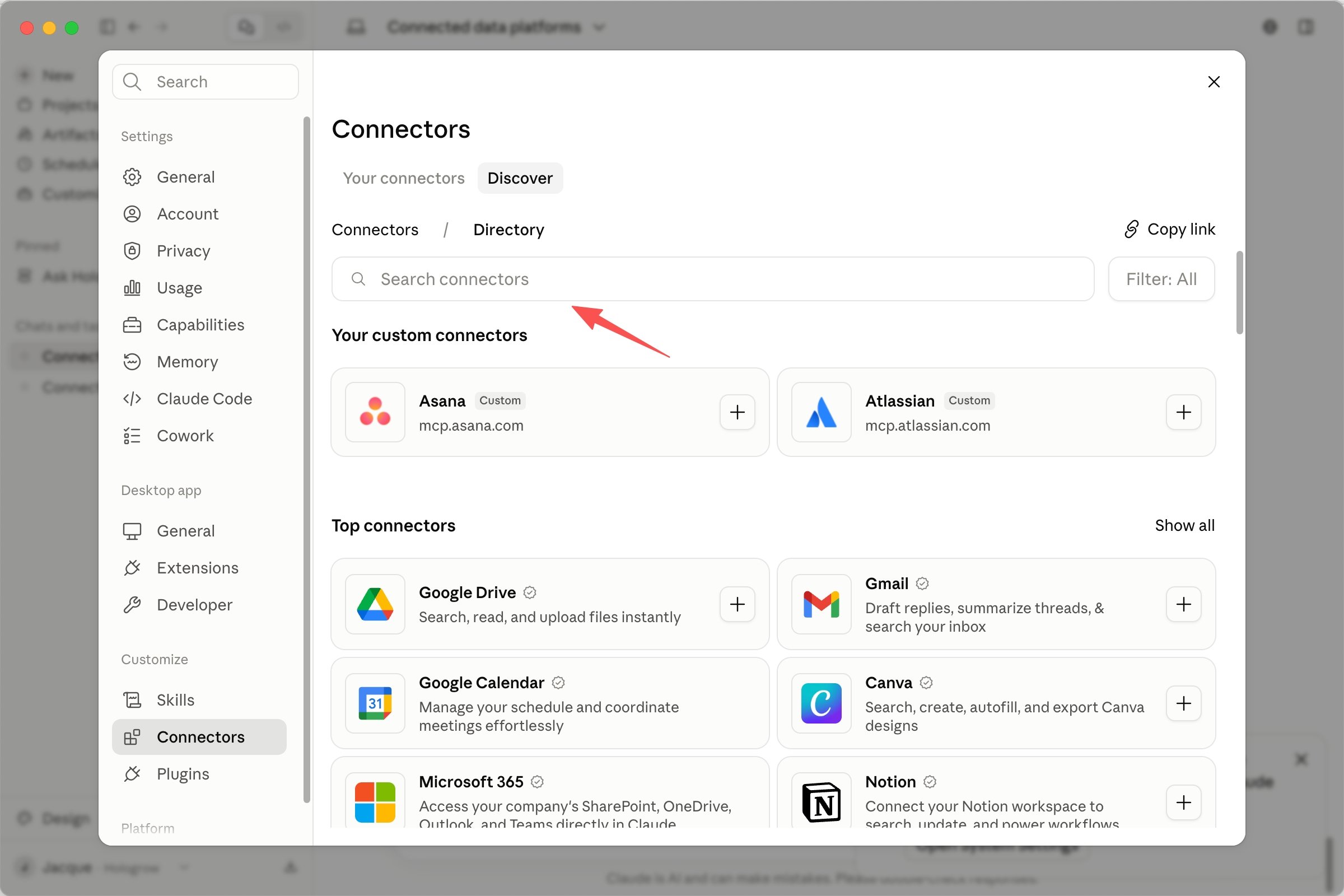
The steps below are the same in the Claude web app and Claude Desktop.Step 1: Add a custom connector
Open Claude on the web or desktop. Go to Settings → Customize → Connectors, open Discover, then search forhologrow.
Step 2: Connect Hologrow MCP
Find mcp.hologrow.ai in the results and click the + icon to connect Hologrow MCP.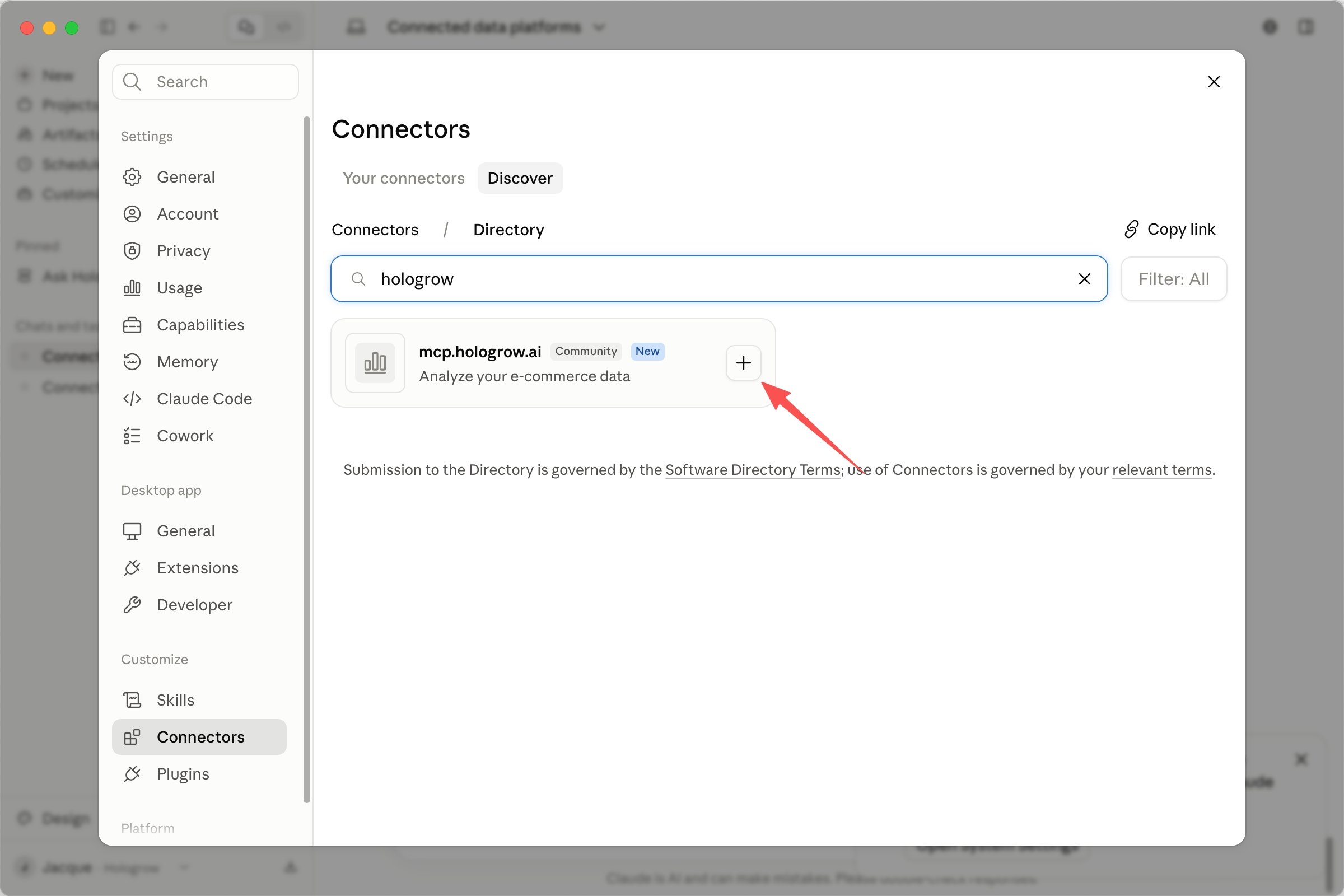
Step 3: Connect and authorize Hologrow
After you add the connector, Claude directs you to the Hologrow authorization page. Sign in and click Allow access.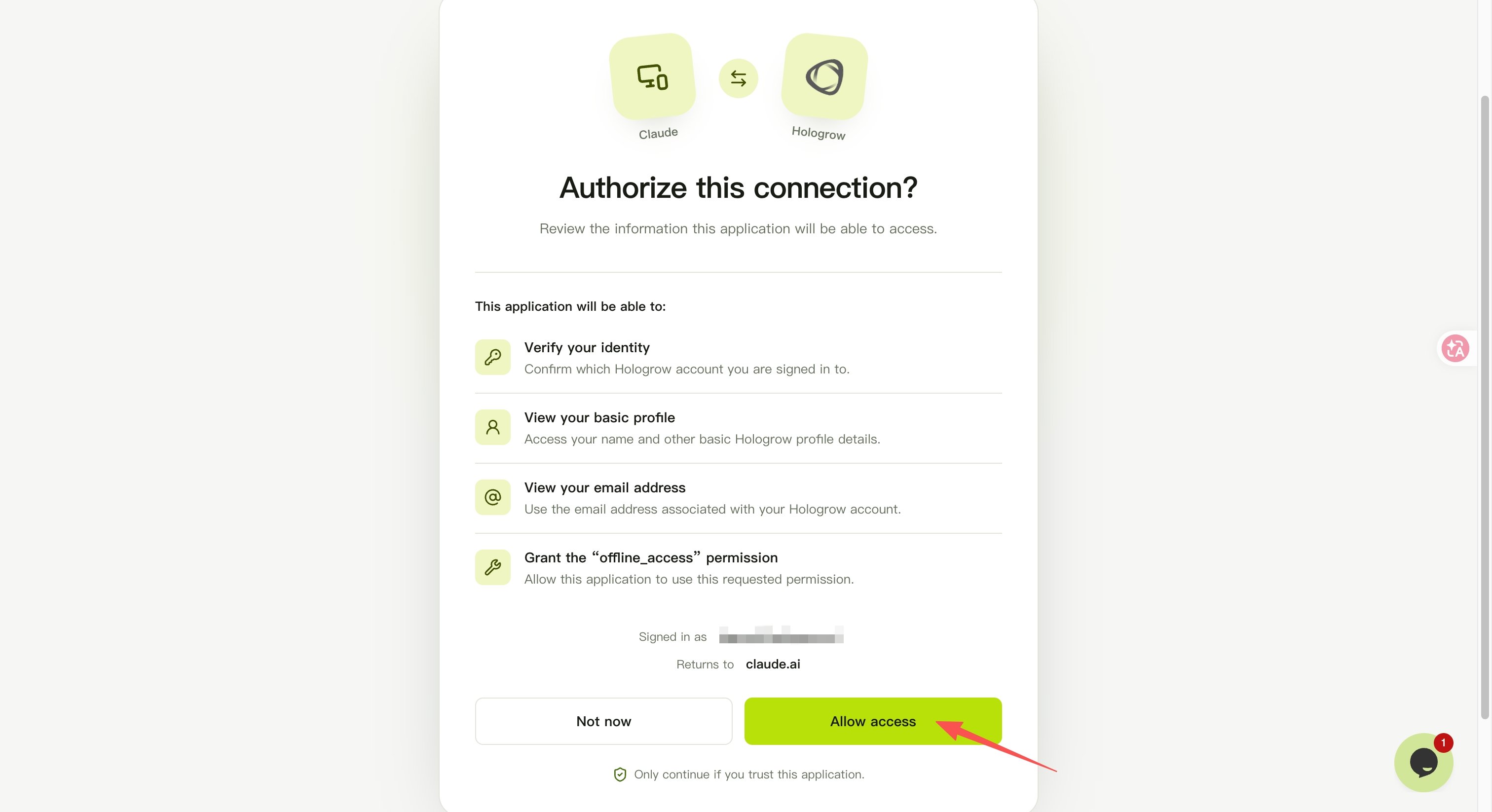
Installation complete: Start using Hologrow
Start a new conversation, then paste and send the message below. If Claude returns your connected data platforms, the connection is working.Claude Code CLI
Create an MCP key in AI Platforms, then run the installation command below in your terminal. ReplaceYOUR_MCP_KEY with the key you created.
Troubleshooting
I don’t see Connectors or Add custom connector
- Your Claude plan or workspace permissions may restrict custom connectors.
- On Team/Enterprise, ask an Owner to add Hologrow first.
Sign-in or approval keeps looping
- Allow pop-ups for
claude.aiand Hologrow. - Retry in a private window to rule out extension issues.
Auth errors after connecting
- Remove and reconnect Hologrow from Claude’s Connectors settings.
- For Claude Code, confirm the MCP key is active and not revoked.
Security
- Hologrow is read-only and never posts on your behalf.
- Access follows the Hologrow user who approved the connection.
- Revoke OAuth sessions or rotate MCP keys from AI Platforms anytime.