
Prerequisites
- At least one data source connected in Integrations and syncing in Data Explorer
- Access to Codex or the ChatGPT desktop app.
- Plus and Pro users can connect to Hologrow MCP directly.
- In Business, Enterprise, and Edu workspaces, a workspace admin or owner must add Hologrow MCP before members can use it.
- In Enterprise and Edu workspaces, admins can use role-based access control (RBAC) to grant selected members access to MCP apps.
Step 1: Add an MCP server
Open the ChatGPT desktop app. Go to Settings → Plugins, then click Add → Add MCP server.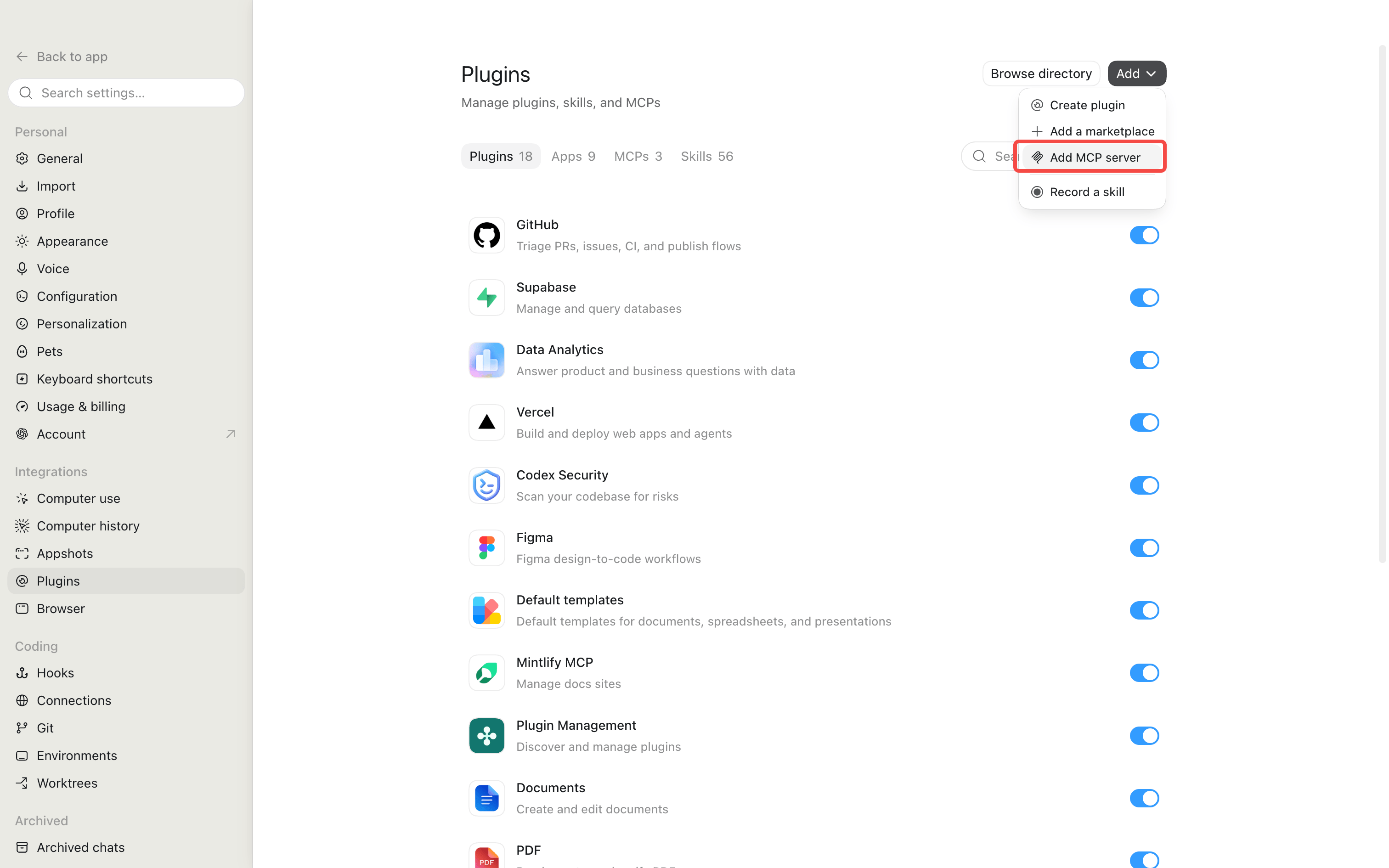
Step 2: Enter the details and save
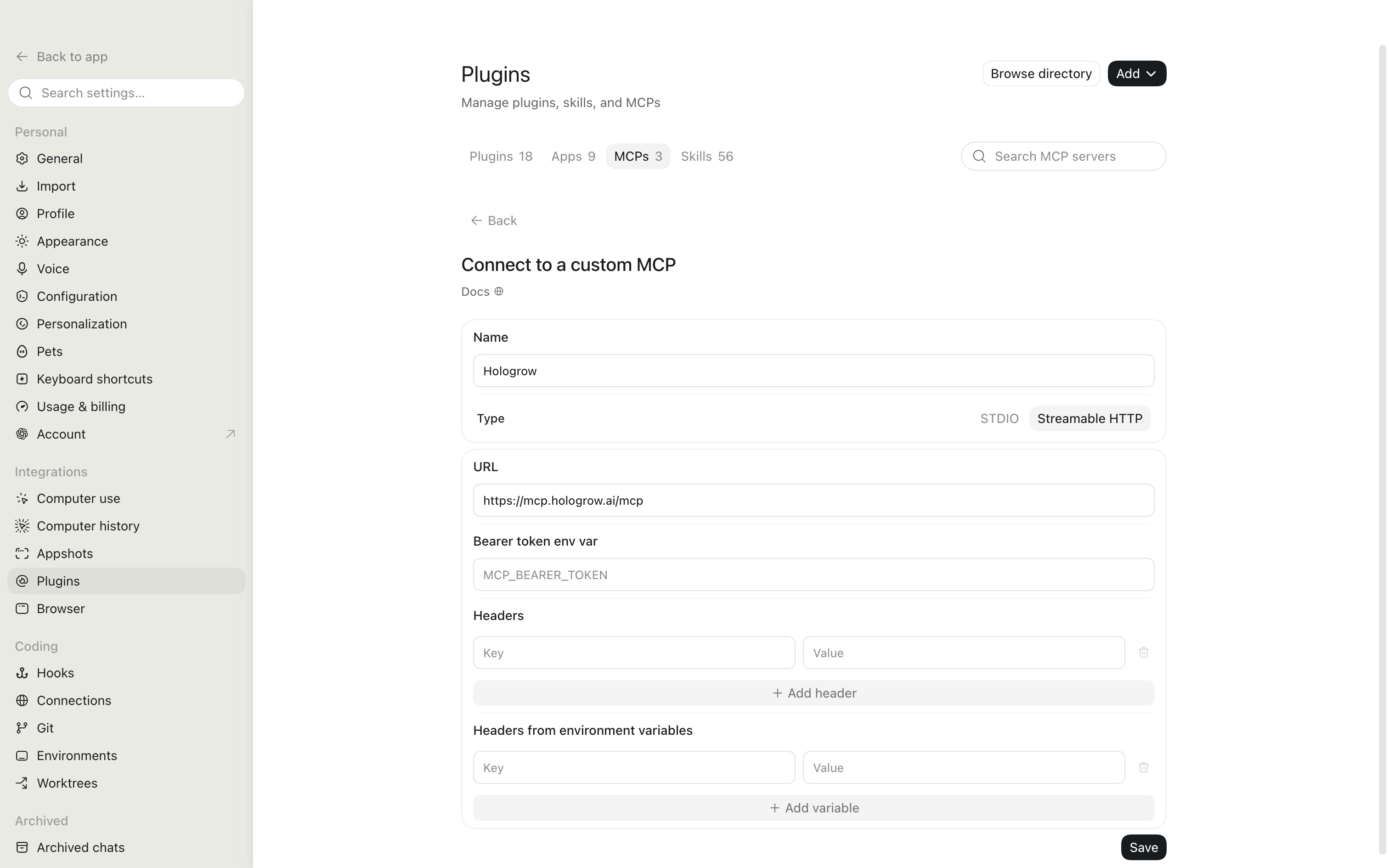
Enter the following details:
Leave Bearer token env var, Headers, and Headers from environment variables empty. Click Save.
Step 3: Authenticate and authorize
After saving, find Hologrow in the MCPs tab and click Authenticate next to it. Complete authorization on the page that opens, then return to Codex.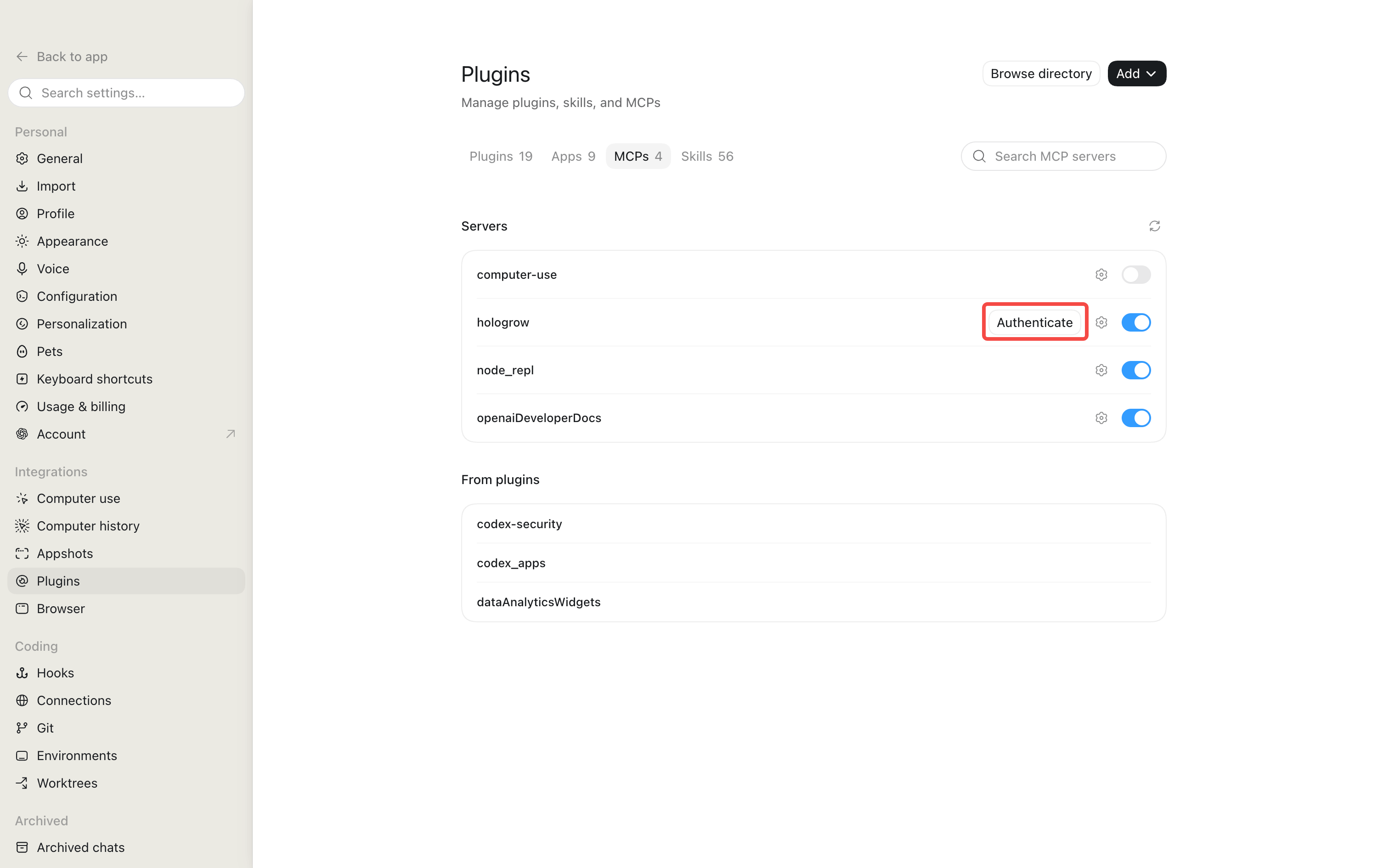
Step 4: Test the connection
Paste the following prompt into Codex or the ChatGPT desktop app to verify the connection:list_platforms tool returns successfully, the connection is ready to use.