
Connect Google Analytics (GA4) to Hologrow to sync website traffic, user behavior, and conversions. Actual coverage depends on account permissions and available workspace tables.

Before you start

A Google account with access to the target GA4 property. Confirm you can open that property in Google Analytics.

Connection steps

  1. Sign in to Hologrow, open Integrations, and find Google Analytics (GA4). Screenshot: find Google Analytics (GA4) in Integrations
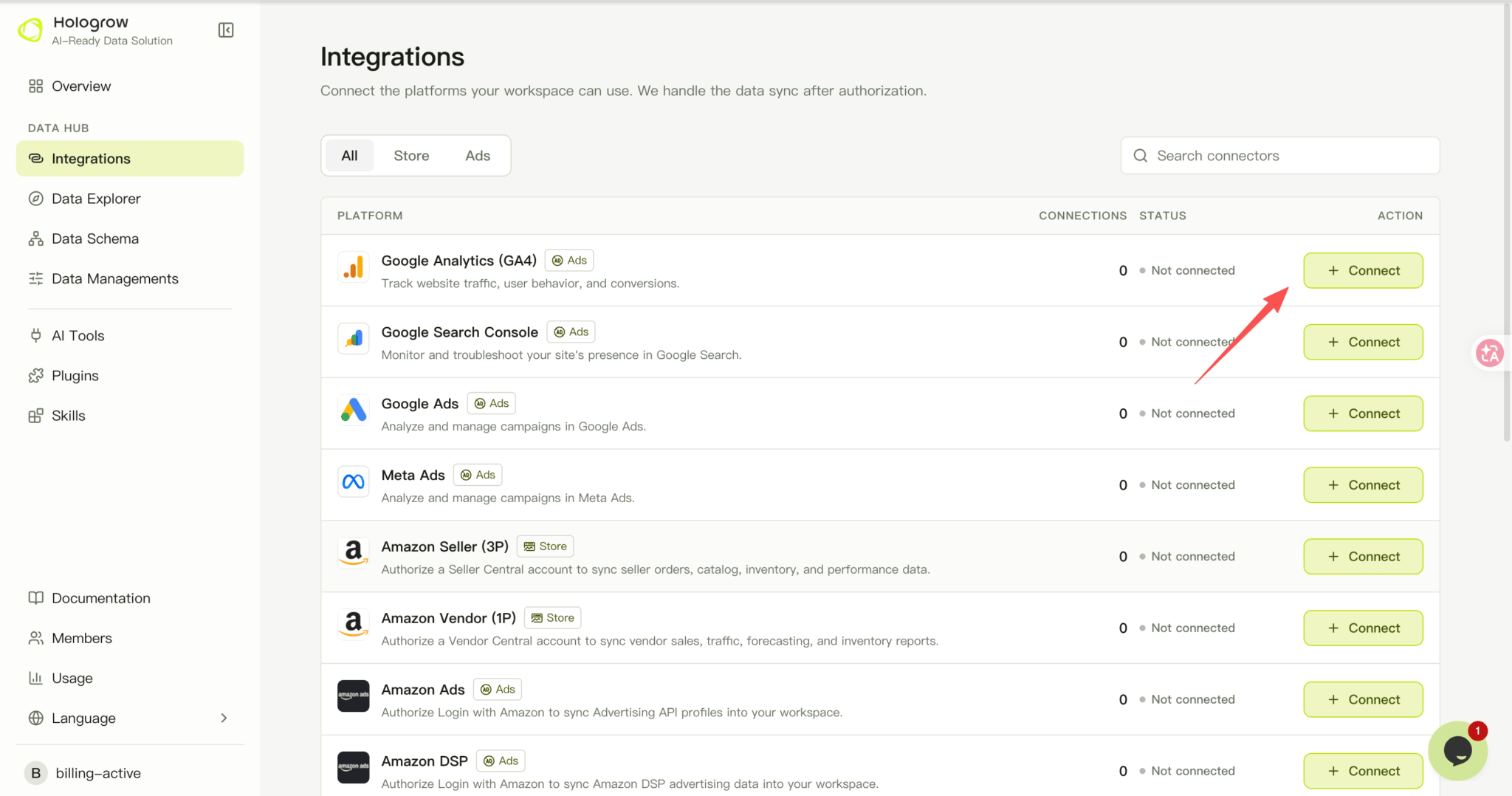
  2. Click Connect, or open Manage to add another connection.
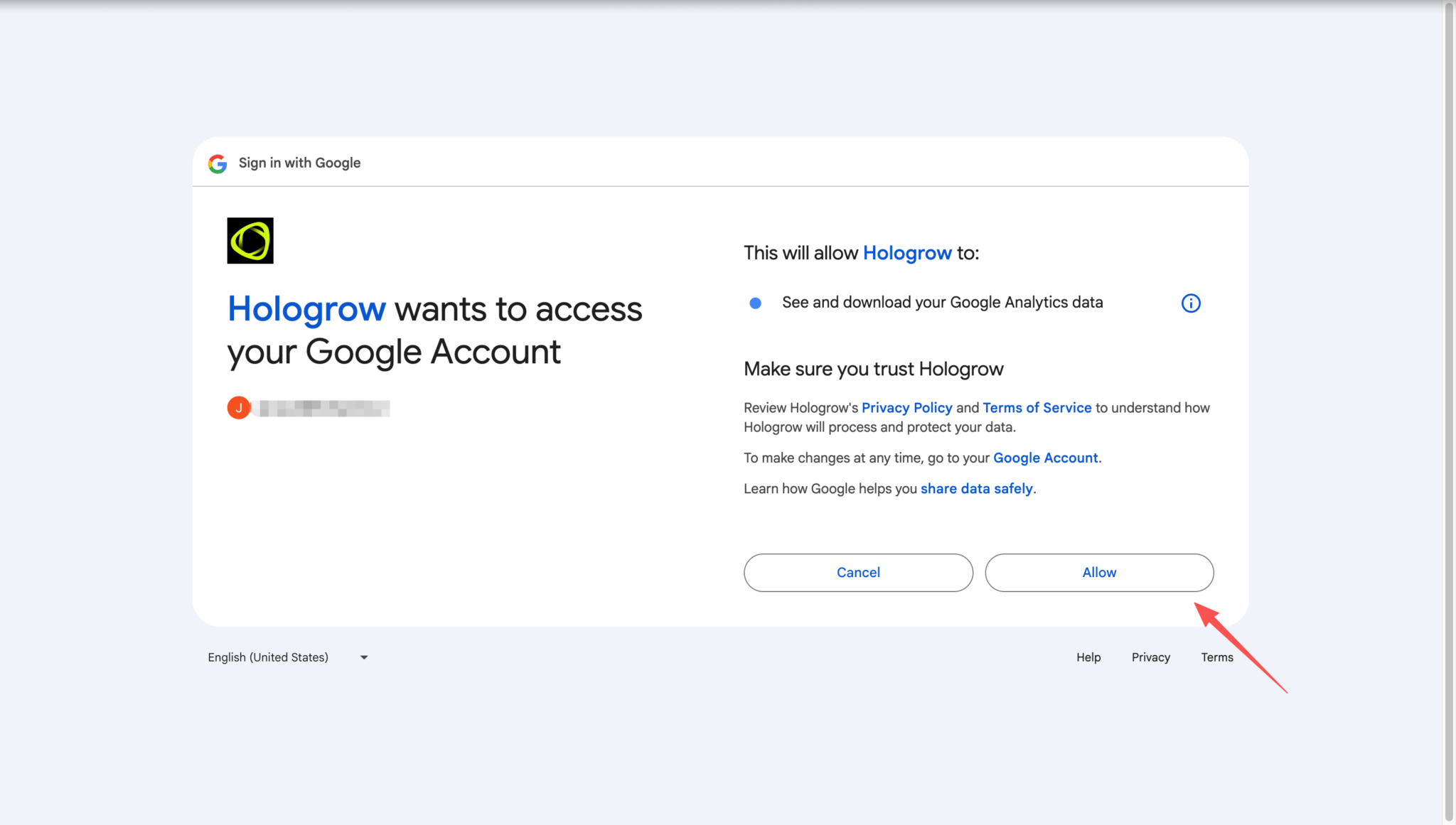
  3. Choose the Google account that has GA4 access, then review and approve the Analytics access requested on the consent screen. Screenshot: review and approve Google Analytics access
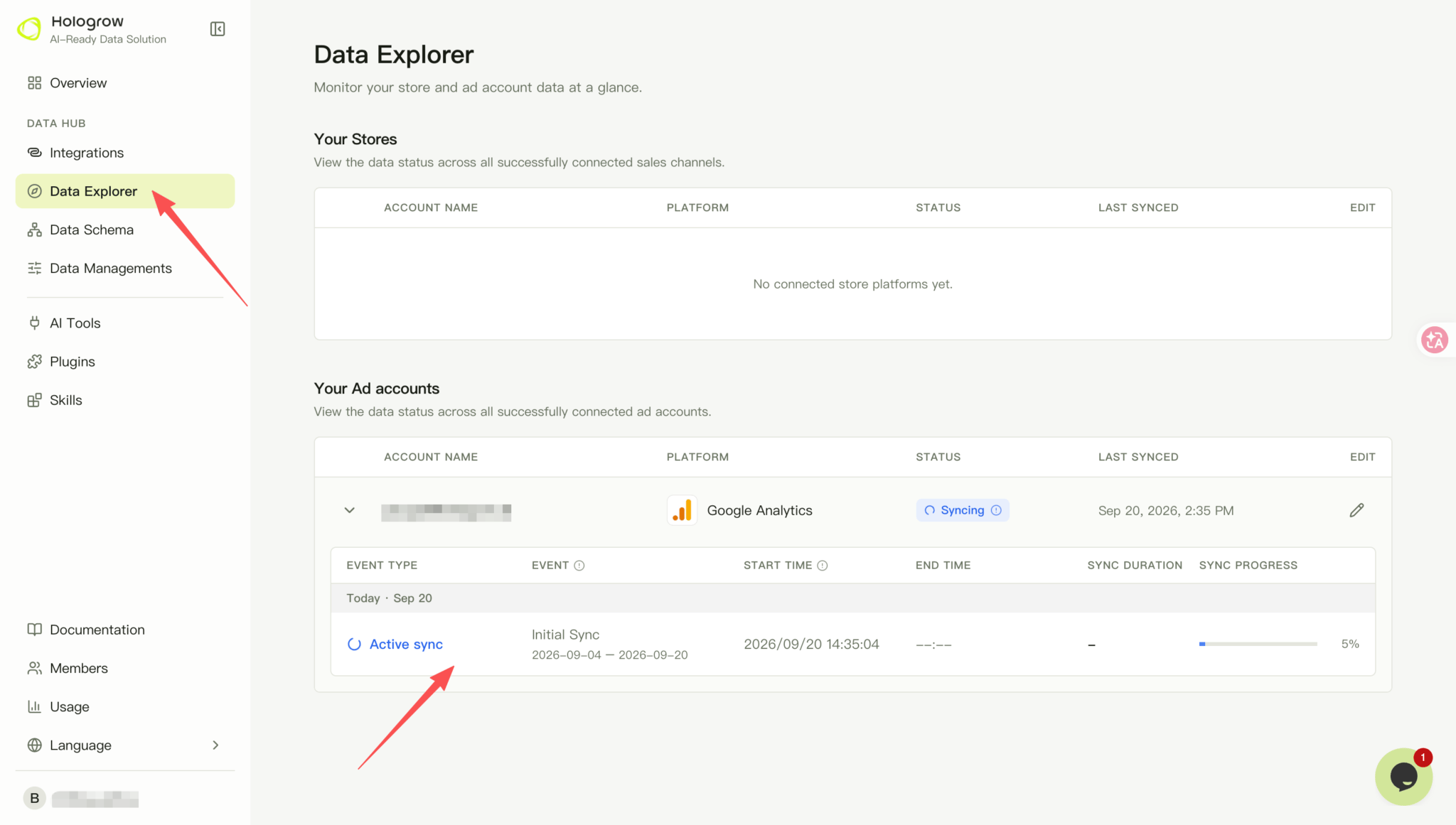
  4. Return to Hologrow and open Data Explorer (connection status). Find the connected account and confirm its status and account name there. If prompted to start syncing, review the data settings and start the sync.
  5. Check progress and the last successful sync in Data Explorer, and wait for the required tables to become available. Screenshot: check GA4 sync progress in Data Explorer
Troubleshooting

Confirm that the account has access to the GA4 property, rather than only Google Ads or Search Console. If results are empty, check whether the property itself has collected data. If authorization expires, reauthorize the affected connection in Manage. If the account is connected but data is missing, check whether syncing has started, the requested date range, and whether the source platform has data.