
Before you start
A Facebook login with access to the target Meta ad account. Confirm that the account is assigned the relevant ad account permissions in Meta business settings.Connection steps
-
Sign in to Hologrow, open Integrations, and find Meta Ads.
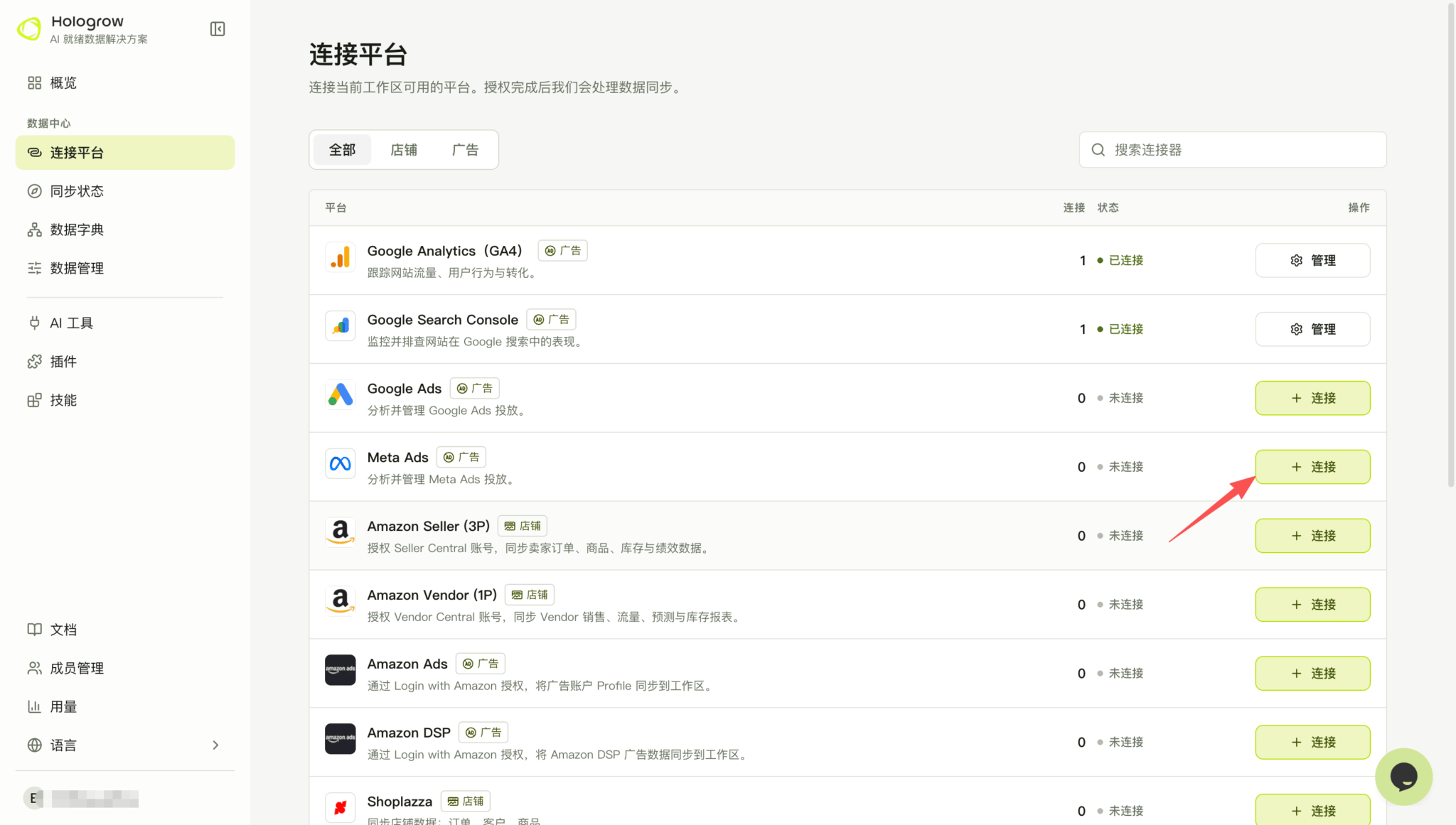
- Click Connect, or open Manage to add another connection.
-
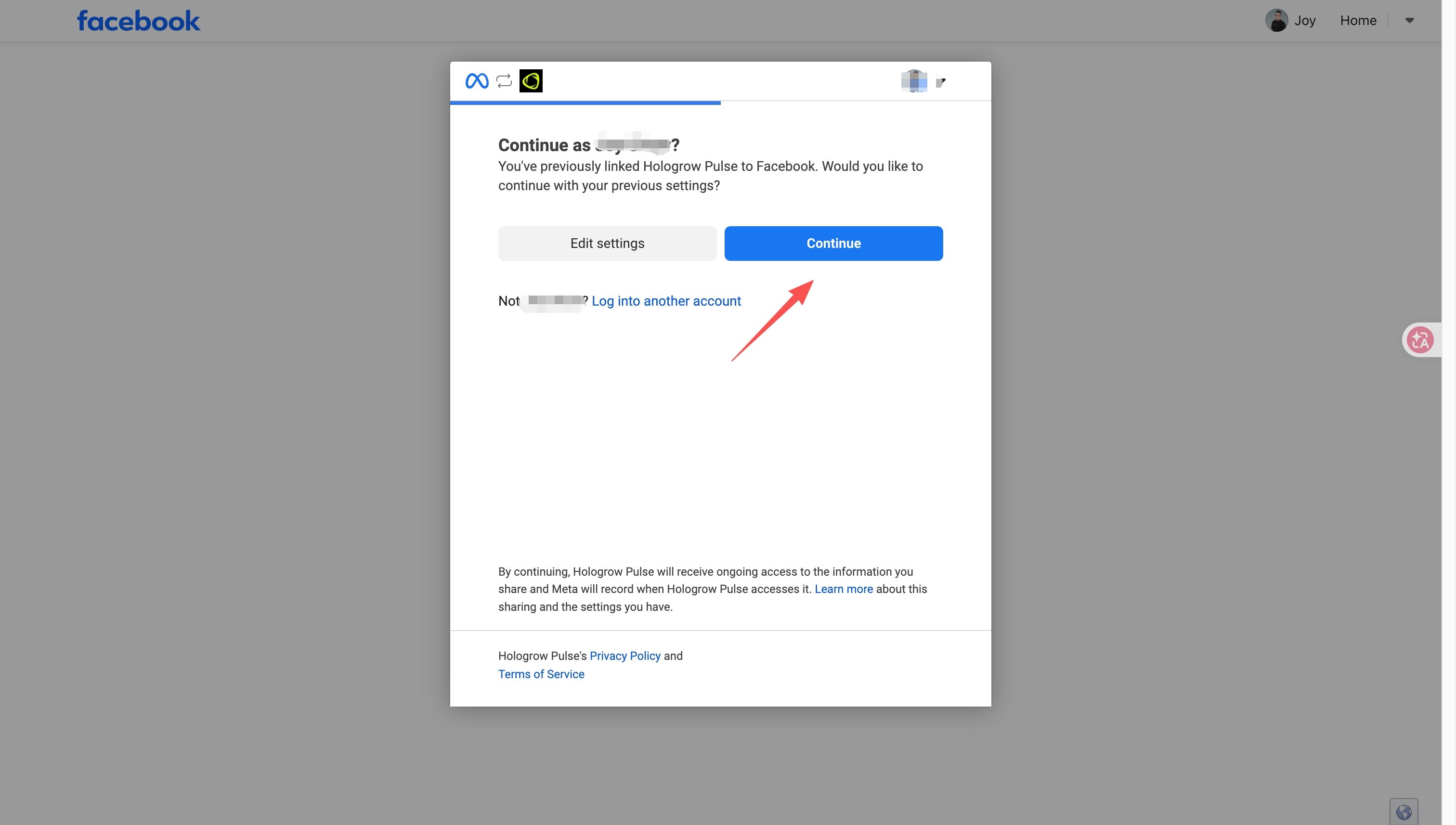
Sign in to Facebook and review the permissions on Meta’s consent screen. If Meta offers to reuse previous settings, confirm the Facebook account and click Continue. If business or account selection is shown, select the intended business and ad accounts, then approve access.
-
Return to Hologrow and open Data Explorer (connection status). Find the connected account and confirm its status and account name there. If prompted to start syncing, review the data settings and start the sync.
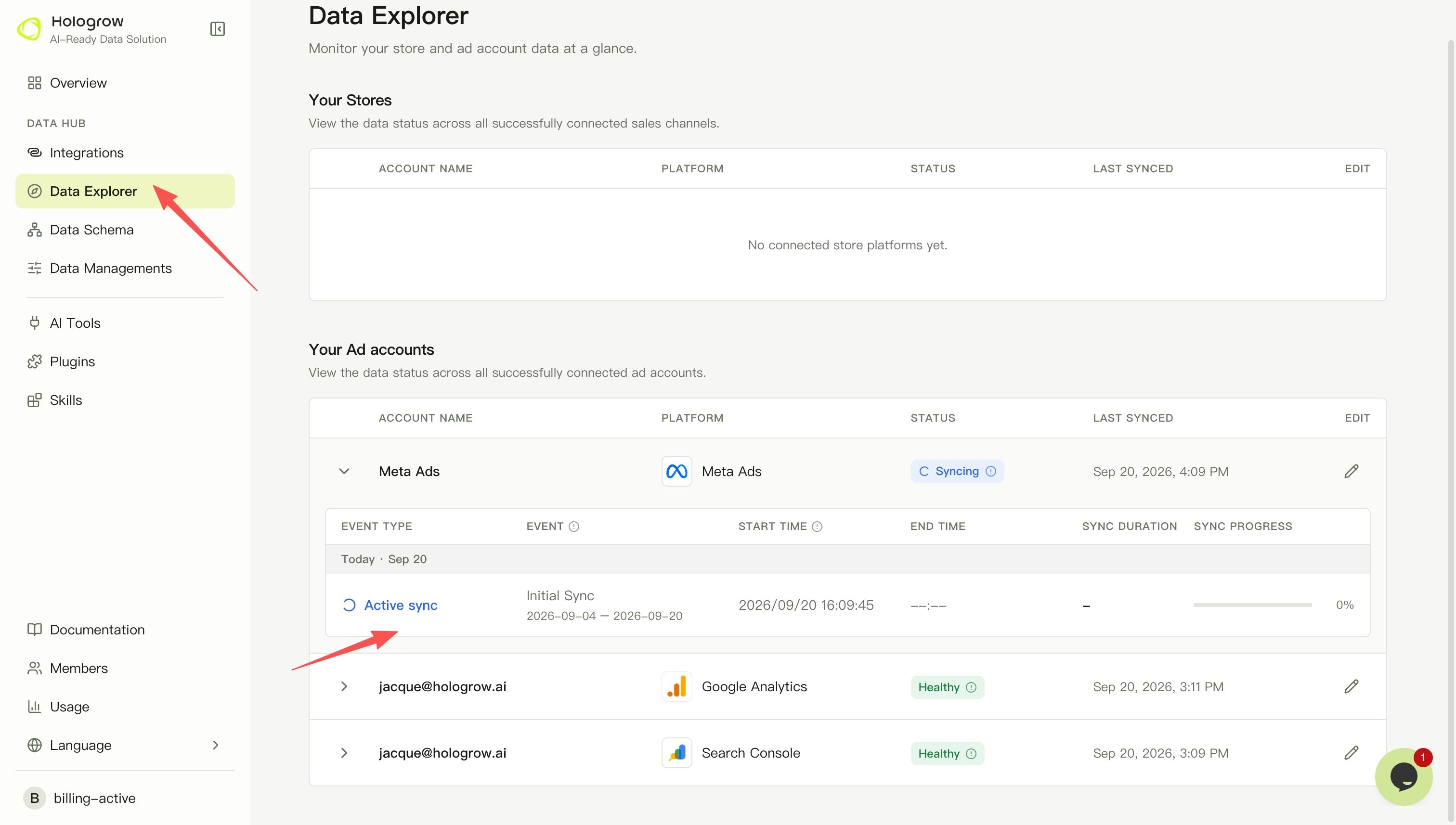
- Check progress and the last successful sync in Data Explorer, and wait for the required tables to become available.