
1. Sign in to Lingxing ERP
Sign in to the Lingxing ERP admin console with a super administrator account.2. Open the API console
Go to Settings → Business configuration → Open API (设置 → 业务配置 → 开放接口). Some versions place Open API under Business configuration → Global (业务配置 → 全局). For first-time setup, enter an email for Open API notifications and click Enter open console (进入开放后台 / 进入开放接口后台) to initialize access. Otherwise, enter the open console directly.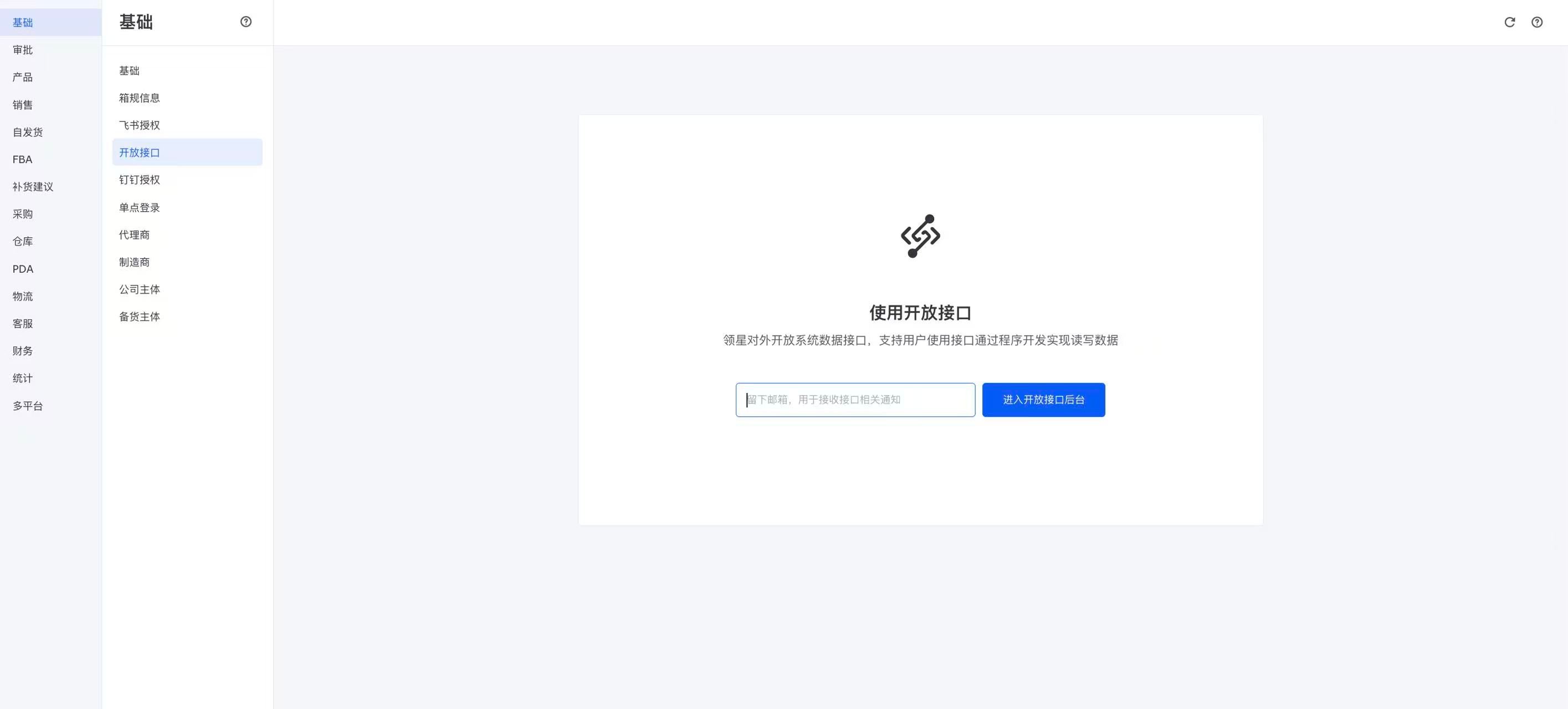
3. Add the IP allowlist entry
In API information (API 信息), find IP allowlist (IP 白名单) and click Edit (编辑).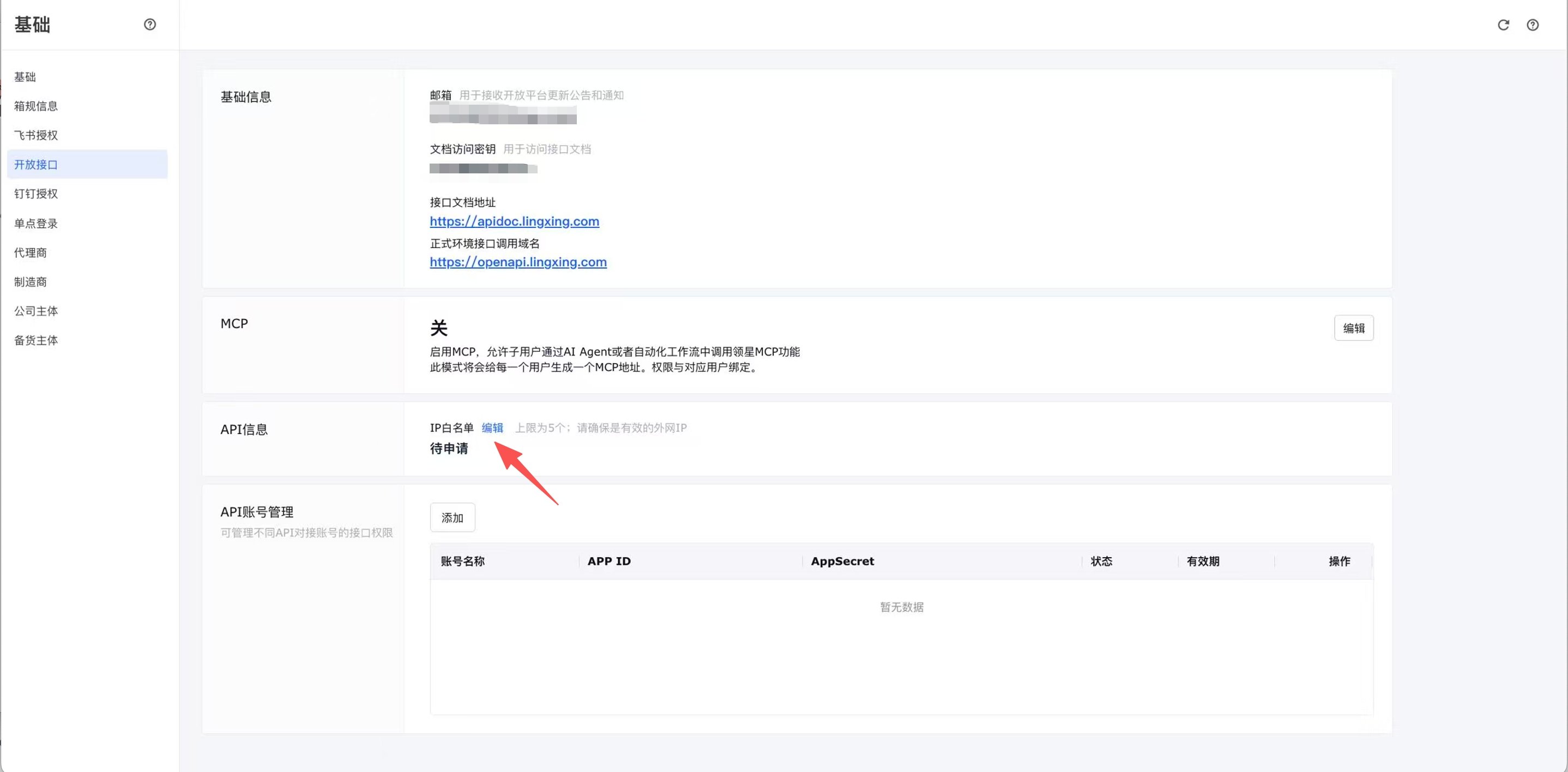
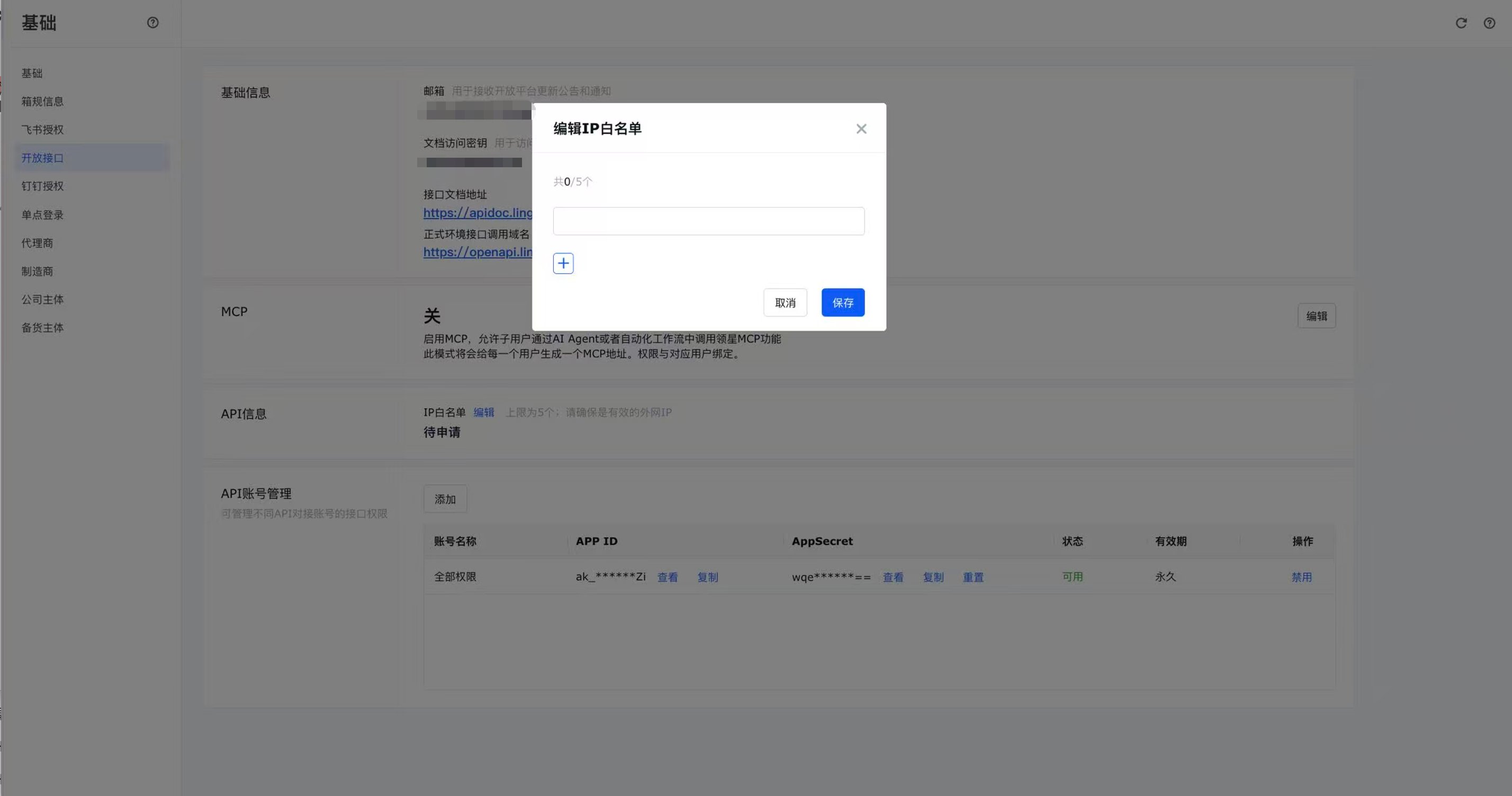
The screenshots show where to configure the setting. The Hologrow IP address to enter is 35.208.2.181.
4. Create an API account and assign permissions
In API account management (API 账号管理), click Add (添加), enter the account details, select the interface permissions for the data you want to sync, and save. Interfaces without selected permissions cannot be called. Confirm access to the required store, listing, sales, and inventory interfaces. If a data category is missing, check the API account’s interface permissions first.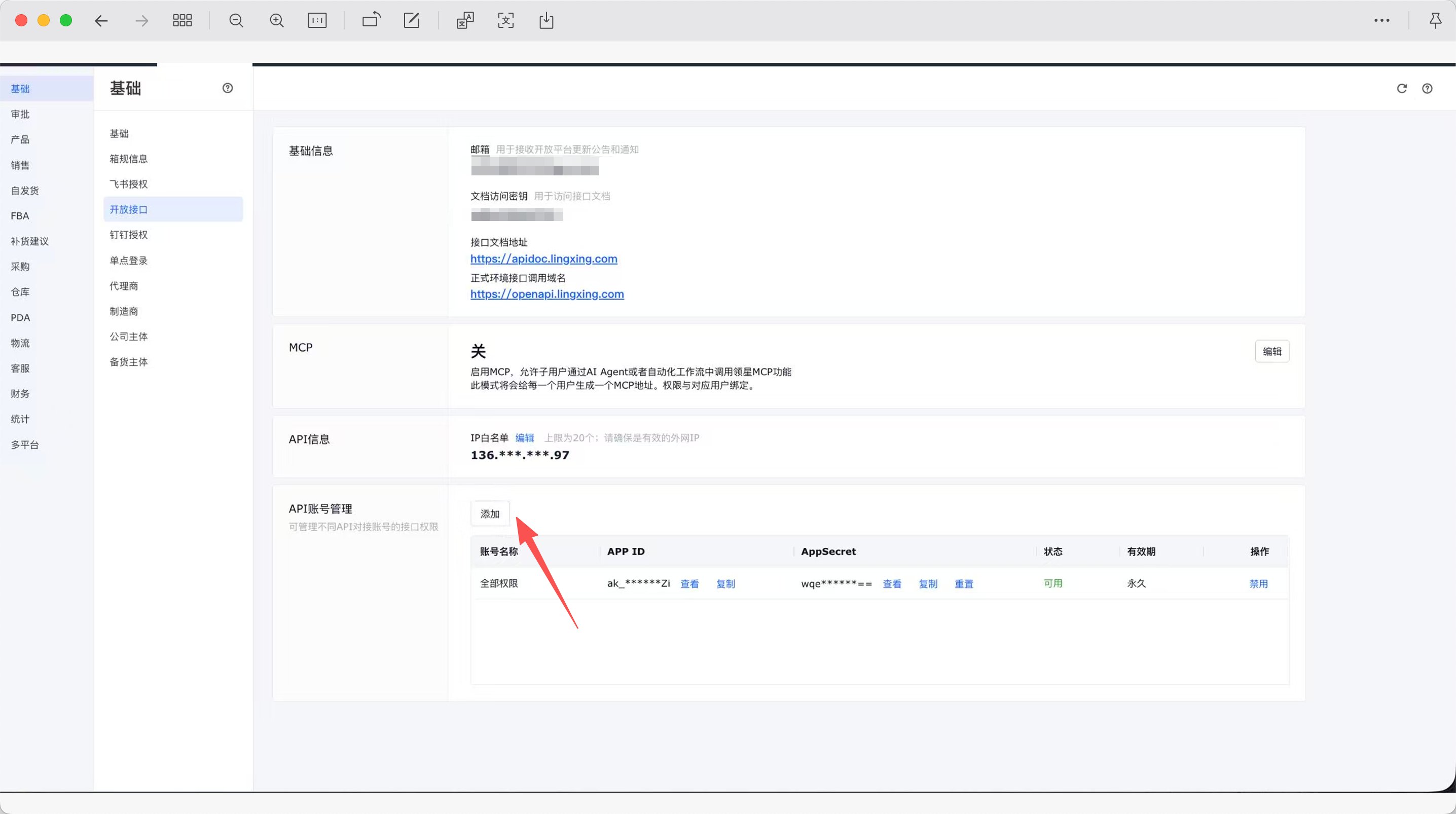
5. Copy the App ID and App Secret
In the new API account row, click Copy (复制) next to APP ID and AppSecret. Use View (查看) if you need to inspect them. Both credentials must come from the same API account; do not use the separate documentation access key shown above.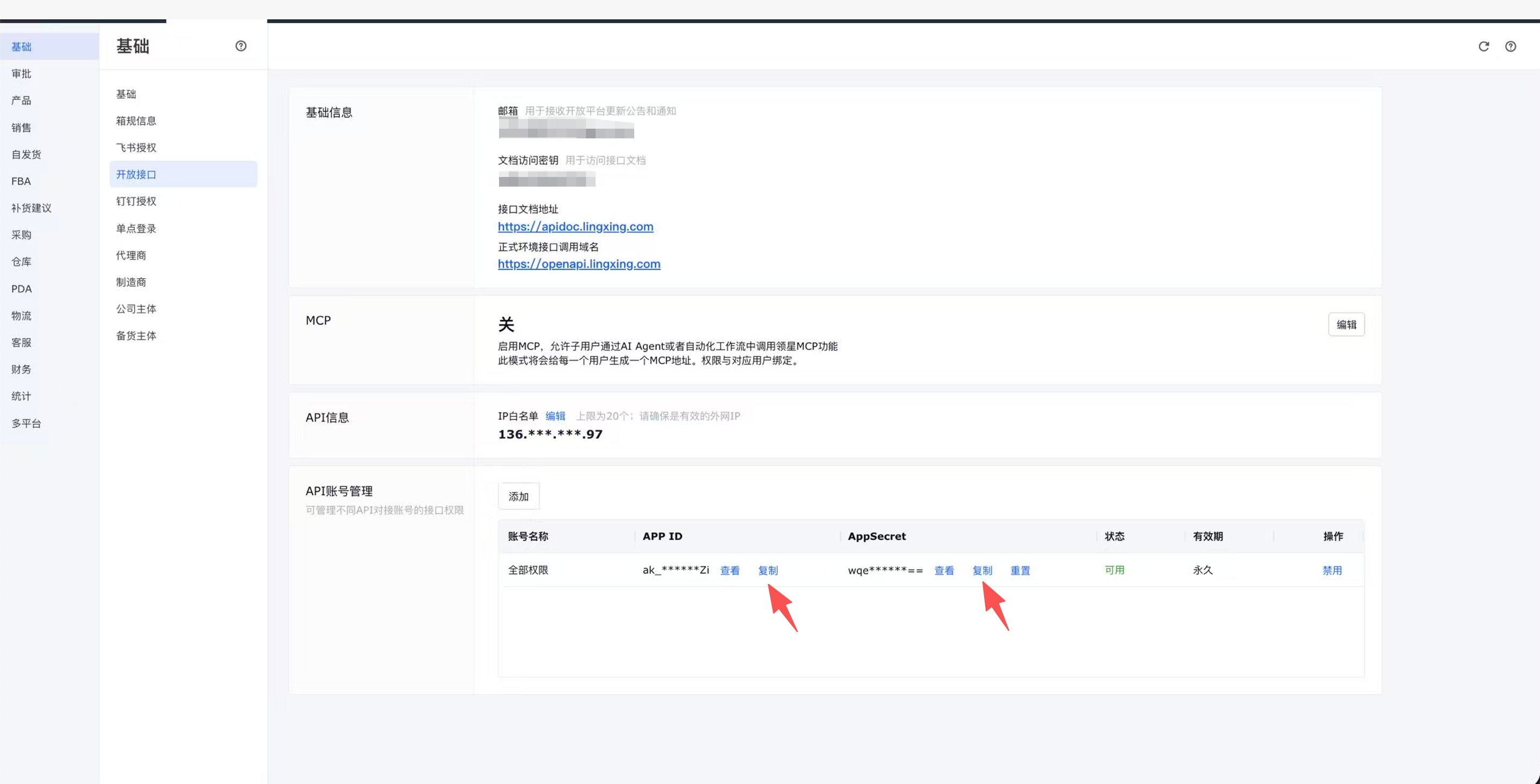
6. Complete the Hologrow connection
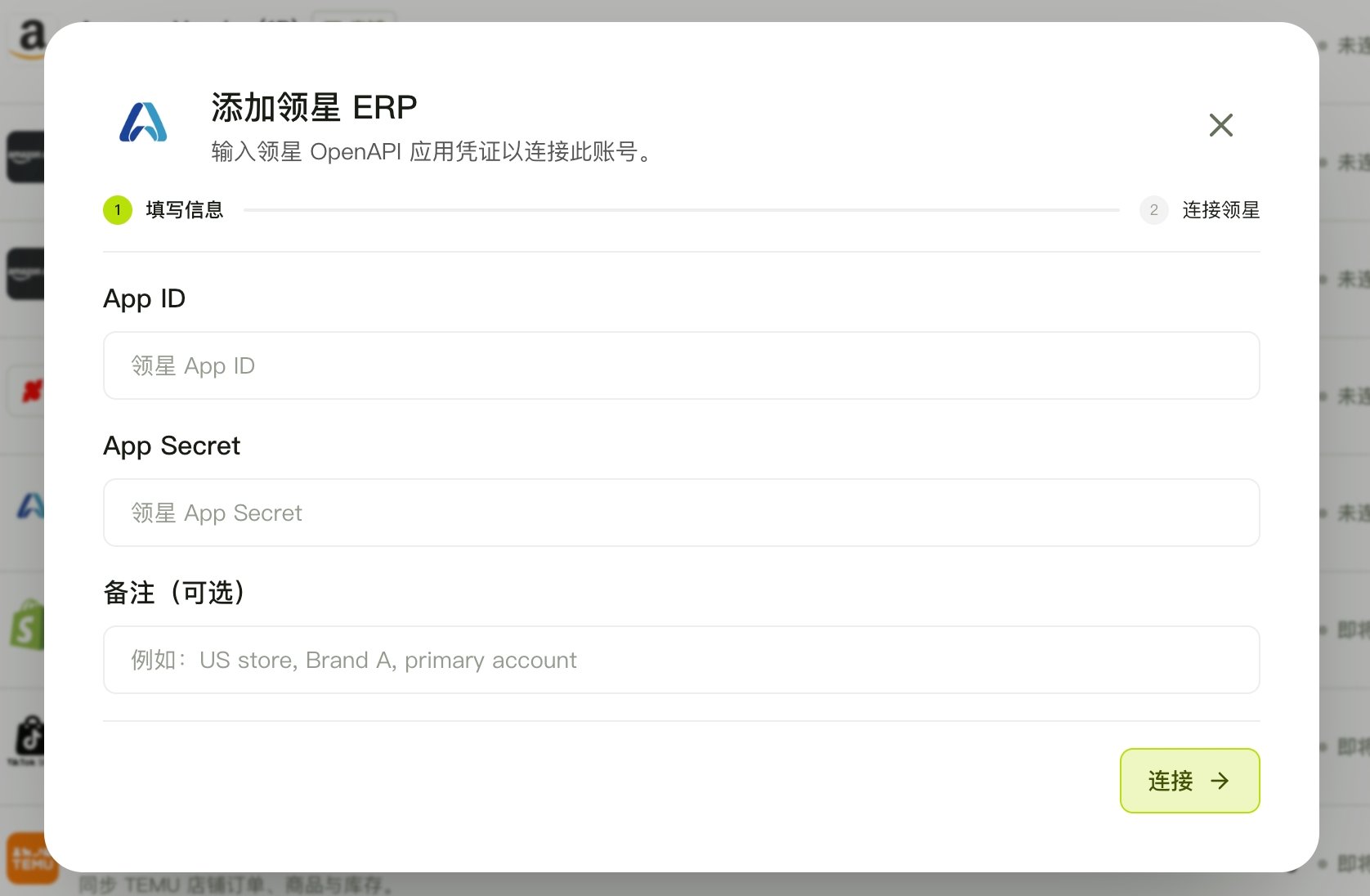
- Open Integrations in Hologrow, find Lingxing ERP, and click Connect, or open Manage to add another connection.
- Paste the credentials into App ID and App Secret.
- Optionally add a Note to identify the account.
- Click Connect and wait for validation.
Troubleshooting
- Open API menu missing: API authorization is not enabled for the account or store. Contact Lingxing support or your account manager to enable it, and confirm you are using a super administrator account.
- Credential validation fails: Confirm both credentials belong to the same active API account, contain no extra spaces, and that
35.208.2.181is saved in the allowlist. If the secret was reset, update the credentials in Hologrow. - Connected but data is missing: Check the relevant interface permissions and whether syncing has started or finished. A successful connection does not mean every interface is authorized.