
Before you start
Use a Shoplazza admin account allowed to manage apps. Prepare the store’s*.myshoplazza.com or *.myshoplaza.com domain, rather than a custom storefront domain or an admin page URL.
Get an Access Token
-
Sign in to the Shoplazza store admin, open Apps, then Manage Private Apps.
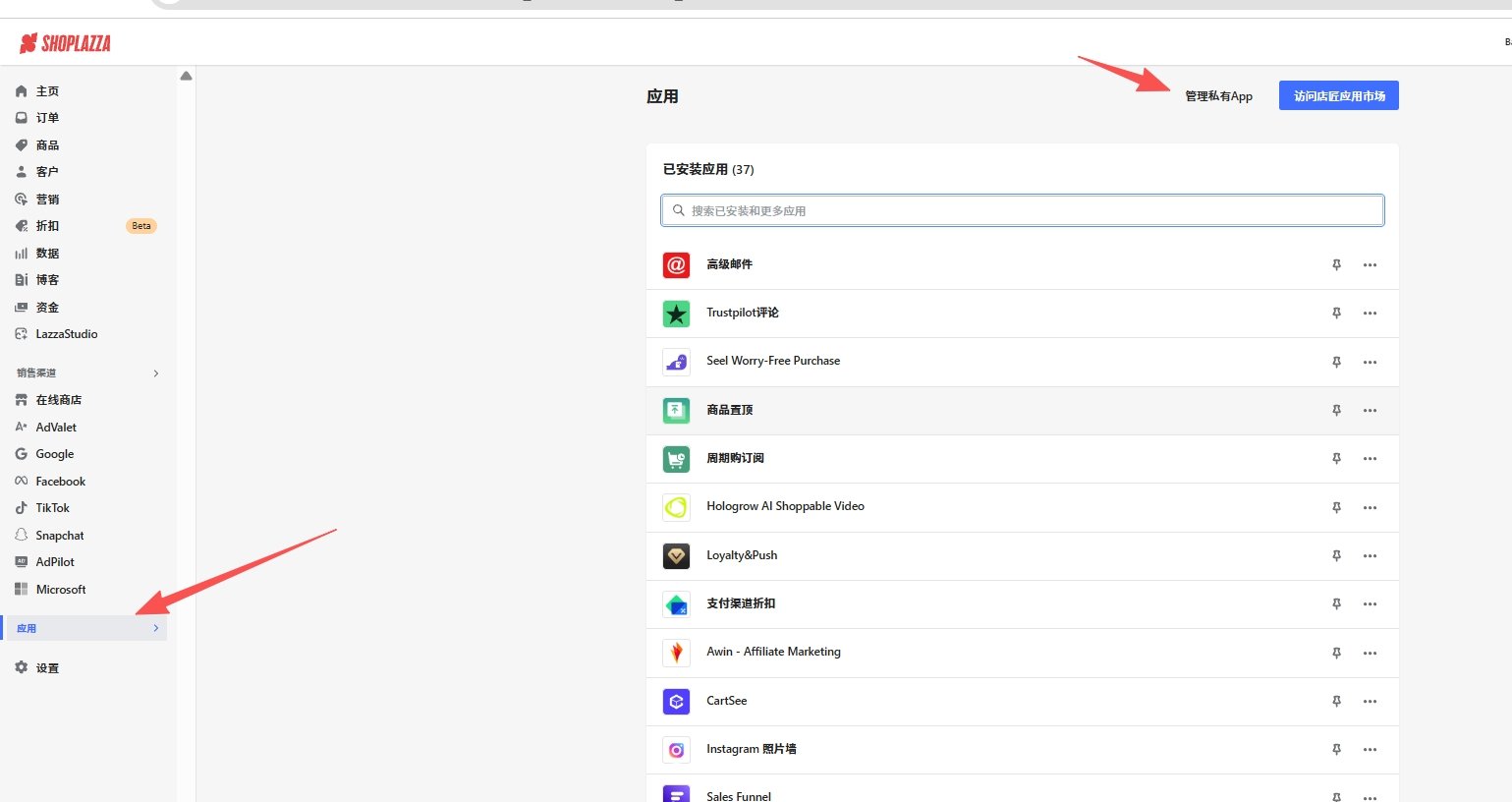
- Create a private app, complete its required name and contact details, enable the required data read permissions, and save.
- Open the private app and copy its generated Access Token, not the App UID or App Secret.
Connect in Hologrow
-
Open Integrations, find Shoplazza, and click Connect, or use Manage to add another connection.
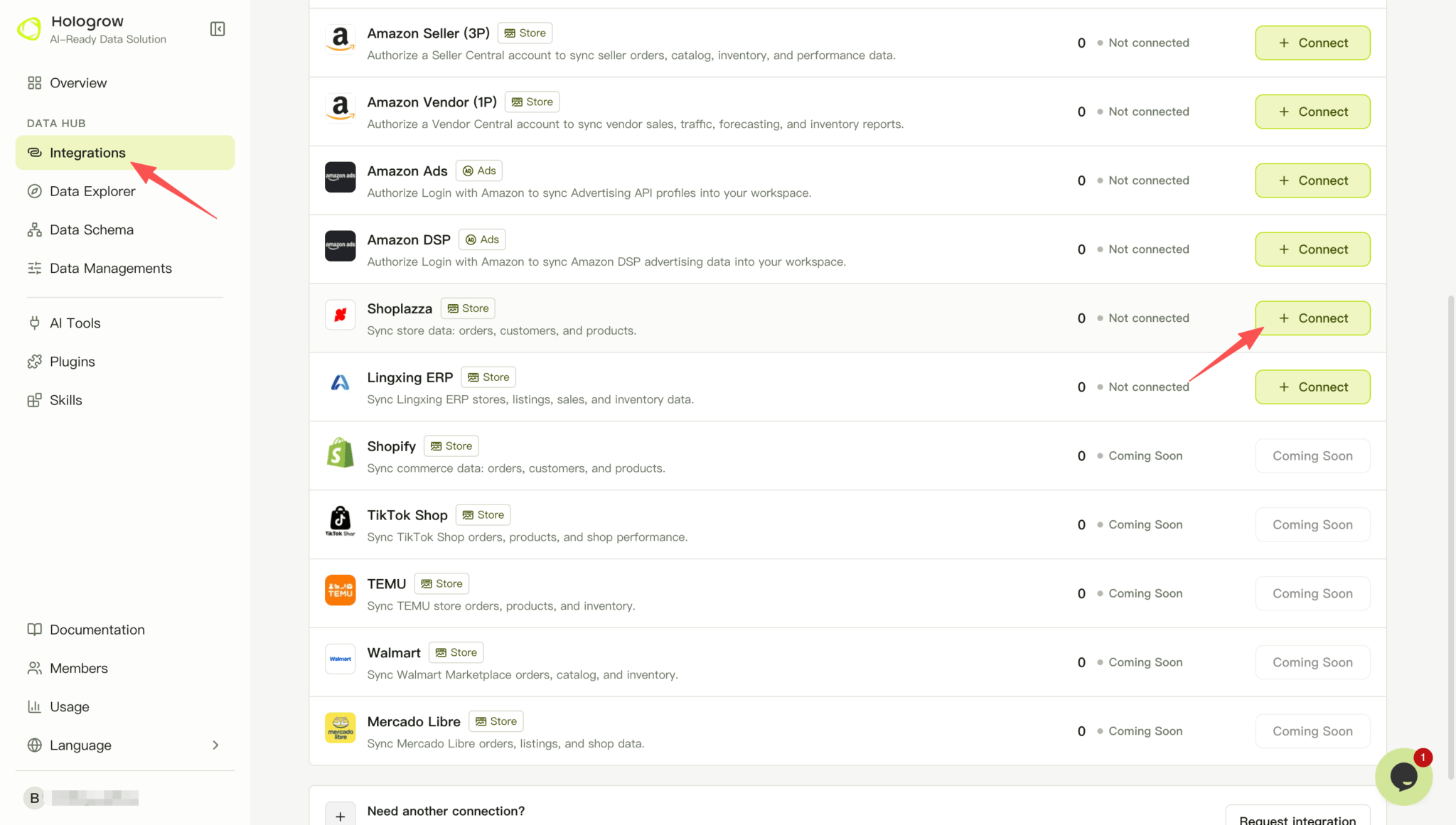
-
Enter the original shop domain, such as
example.myshoplazza.com. -
Paste the token into Access Token and optionally add a note.
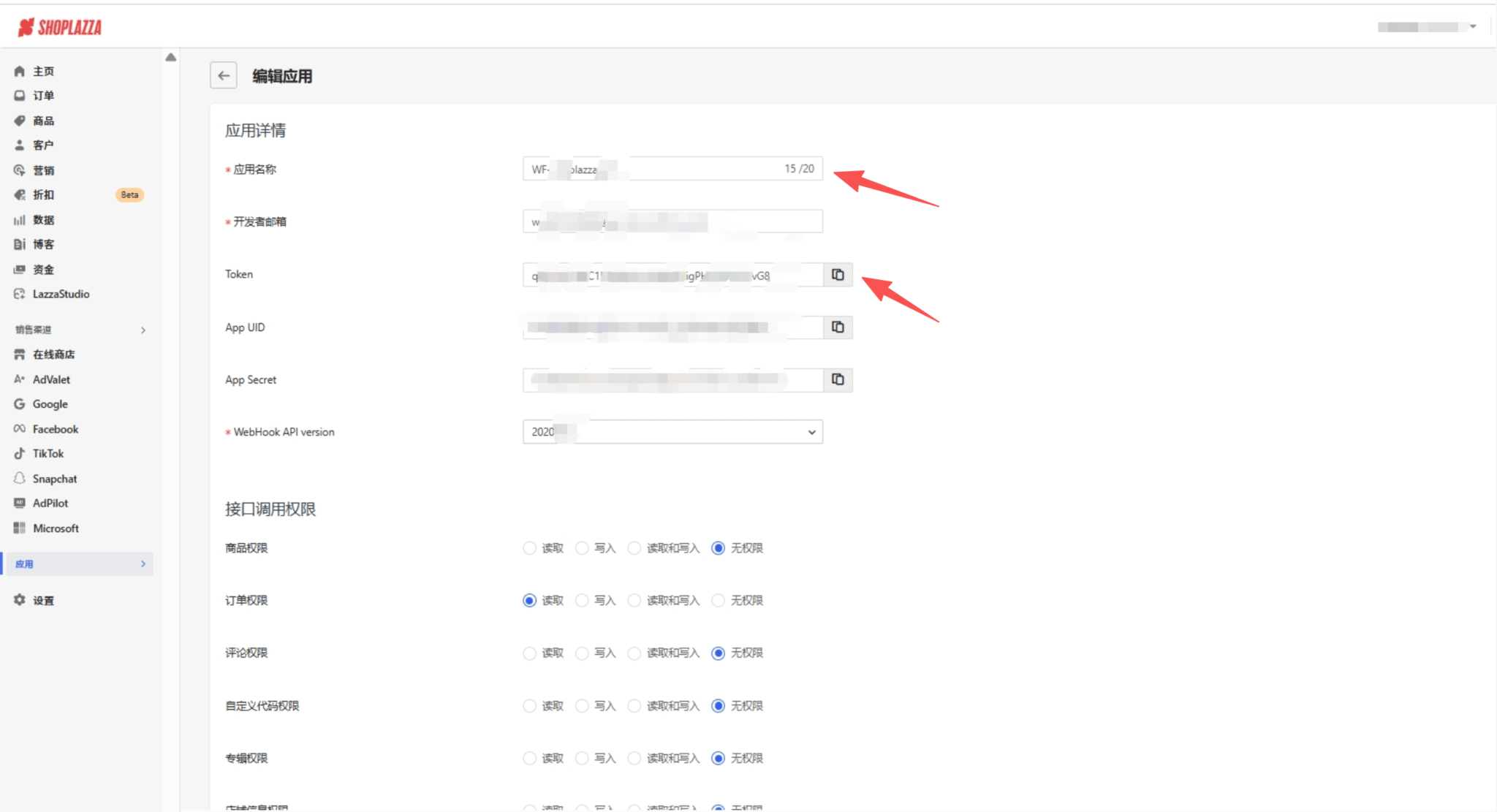
- Submit with the authorize account button, then open Data Explorer (connection status) to confirm the Shoplazza account and its status. If prompted to start syncing, review the data settings and start the sync.
- Check sync progress and tables in Data Explorer.
Troubleshooting
- Invalid domain: Enter only the supported shop domain, without
/admin, query parameters, or a custom domain. - Authorization fails or data is missing: Confirm the token belongs to this store, remains valid, and has the required read permissions.
- Multiple stores: Add each store separately with its own domain and token.